
Starting Soon, BRB and ending screens
Design one screen and you get all six: Starting Soon, Be Right Back, Intermission, Just Chatting, Stream Ending and Offline. They share one layout and only the headline changes. Add a live countdown and paste one URL into OBS.
Free to use. Sign in to save your work and download it.
- Size
- 1920 × 1080
- Screens
- Starting Soon, Be Right Back, Intermission, Just Chatting, Stream Ending, Offline
- Formats
- PNG, JPG, WebM video, OBS browser source
- Works with
- OBS Studio, Streamlabs Desktop, Twitch, Kick, YouTube Live
What it does
Six screens from one design
Switching the screen type changes the headline and keeps the layout, fonts and colors, so your scenes match.
Live countdowns
Countdown and clock widgets run inside OBS as a browser source. You don’t need a plugin or a script.
Your schedule
The stream schedule saved in your brand vault appears on the Offline and Ending screens.
Image or live link
Download PNGs for an OBS Image source, or use the hosted URL when the screen has a countdown.
Templates
2 free, 8 premium. Premium templates are free to edit; you pay to download them without the watermark.
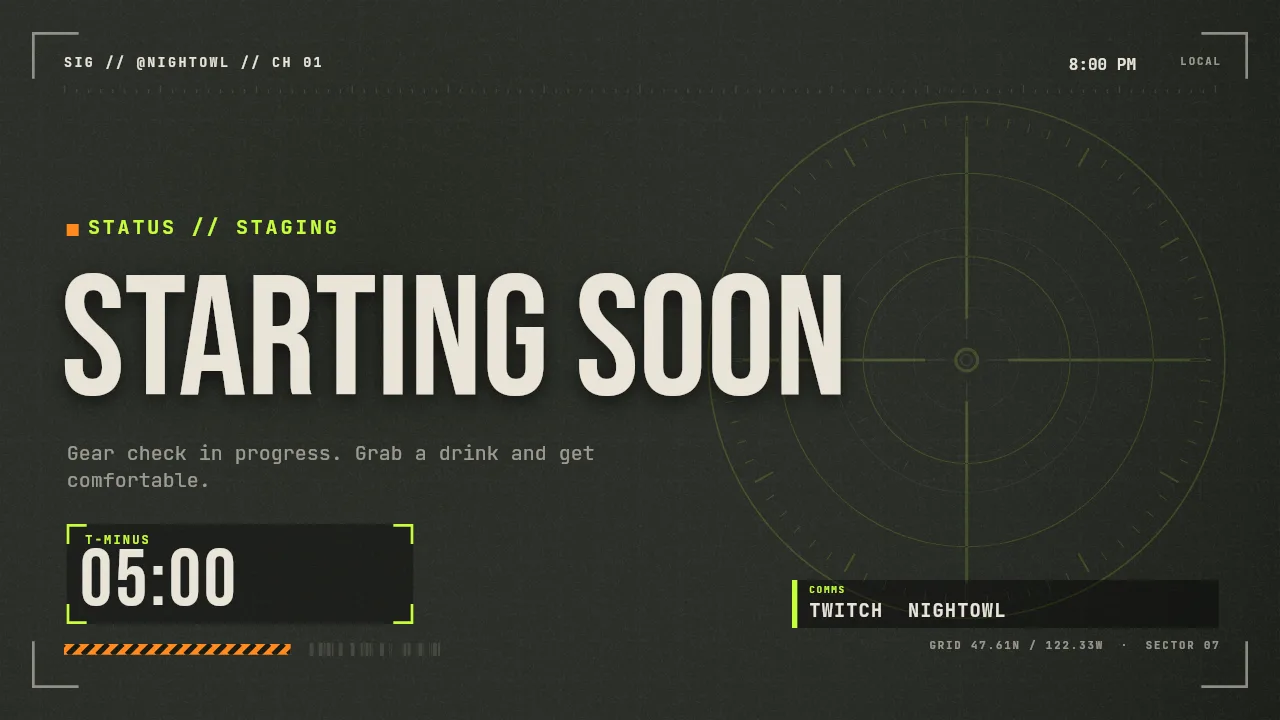
Sitrep
Stream screen · Tactical
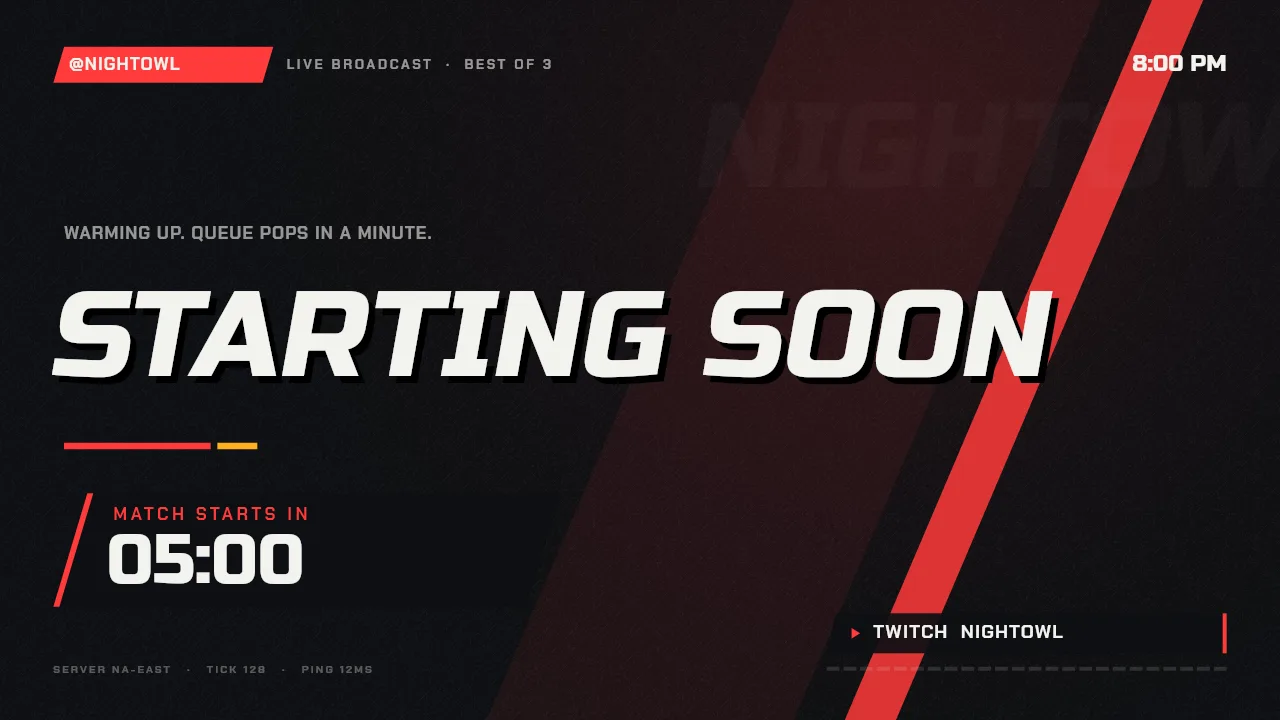
Lobby
Stream screen · Competitive FPS
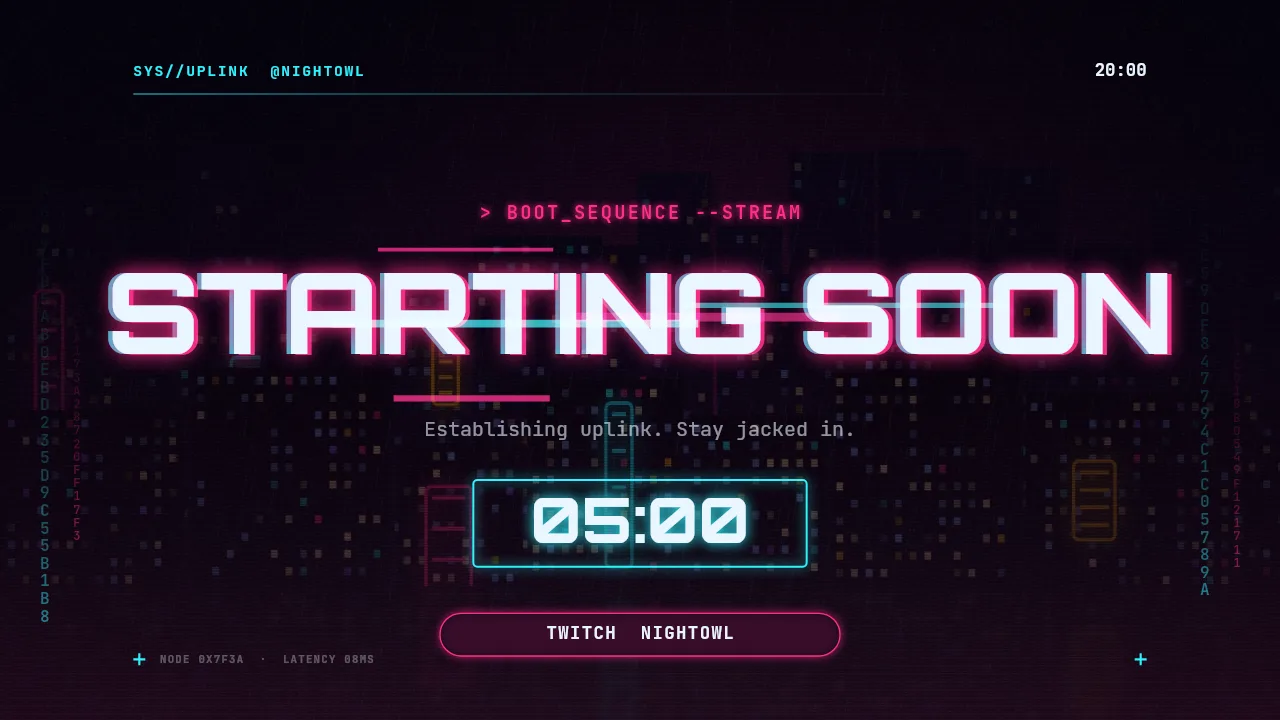
Uplink
Stream screen · Cyberpunk
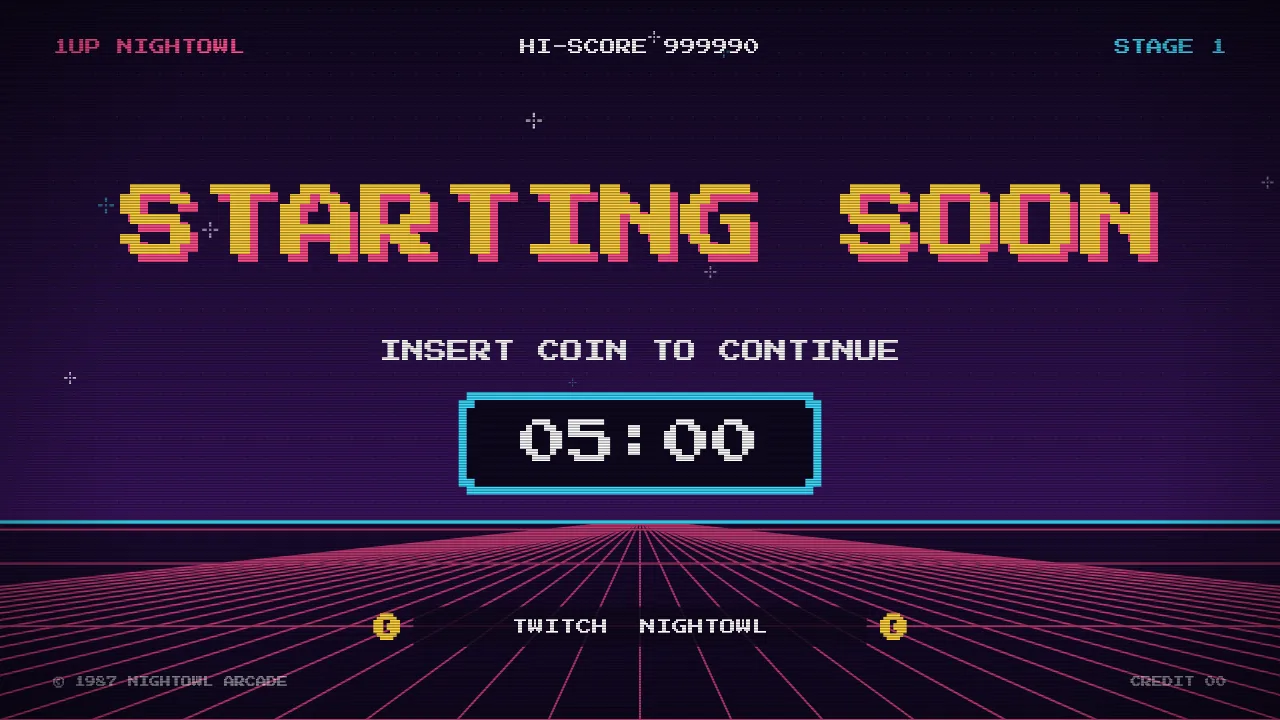
Insert Coin
Stream screen · Retro arcade
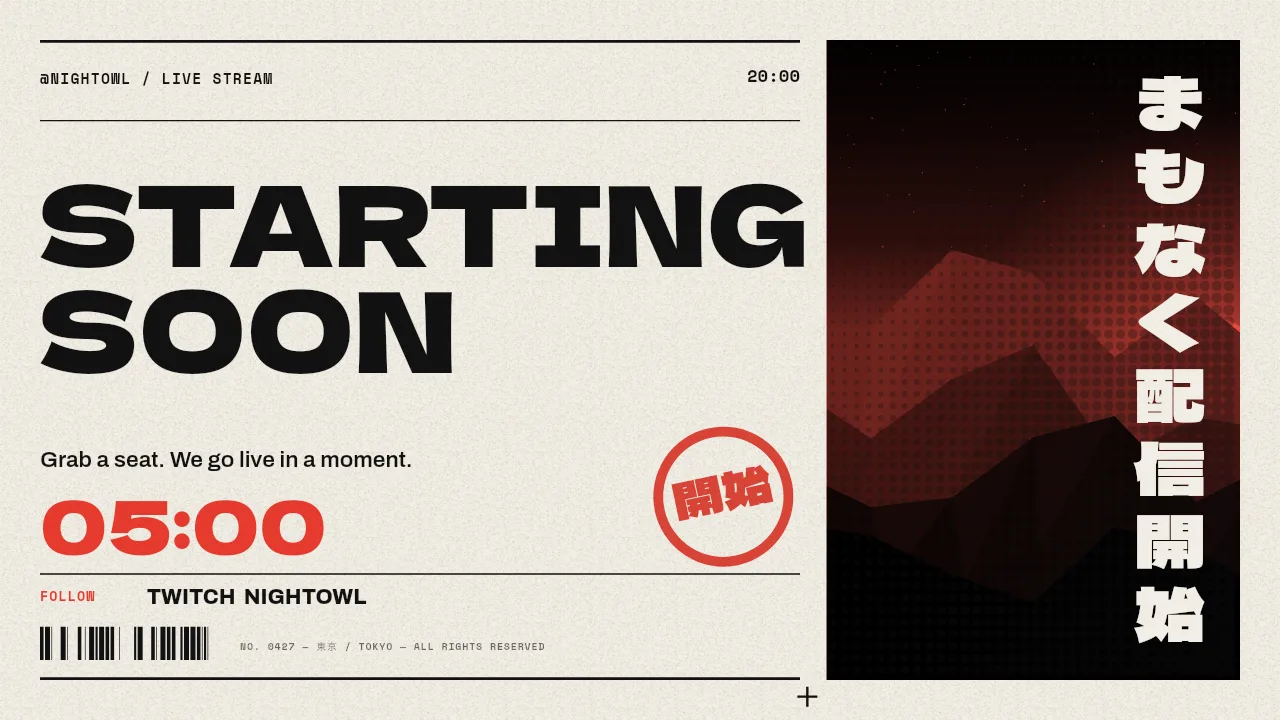
Poster
Stream screen · Japanese streetwear
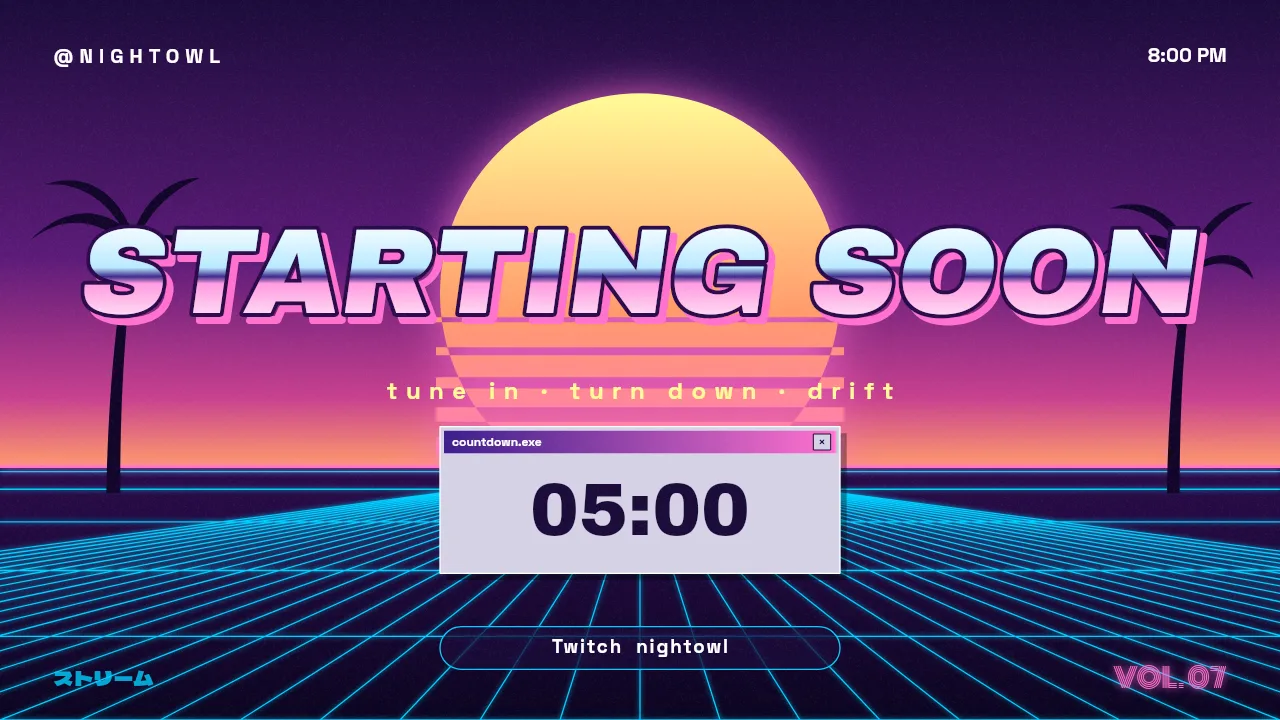
Dreamwave
Stream screen · Vaporwave
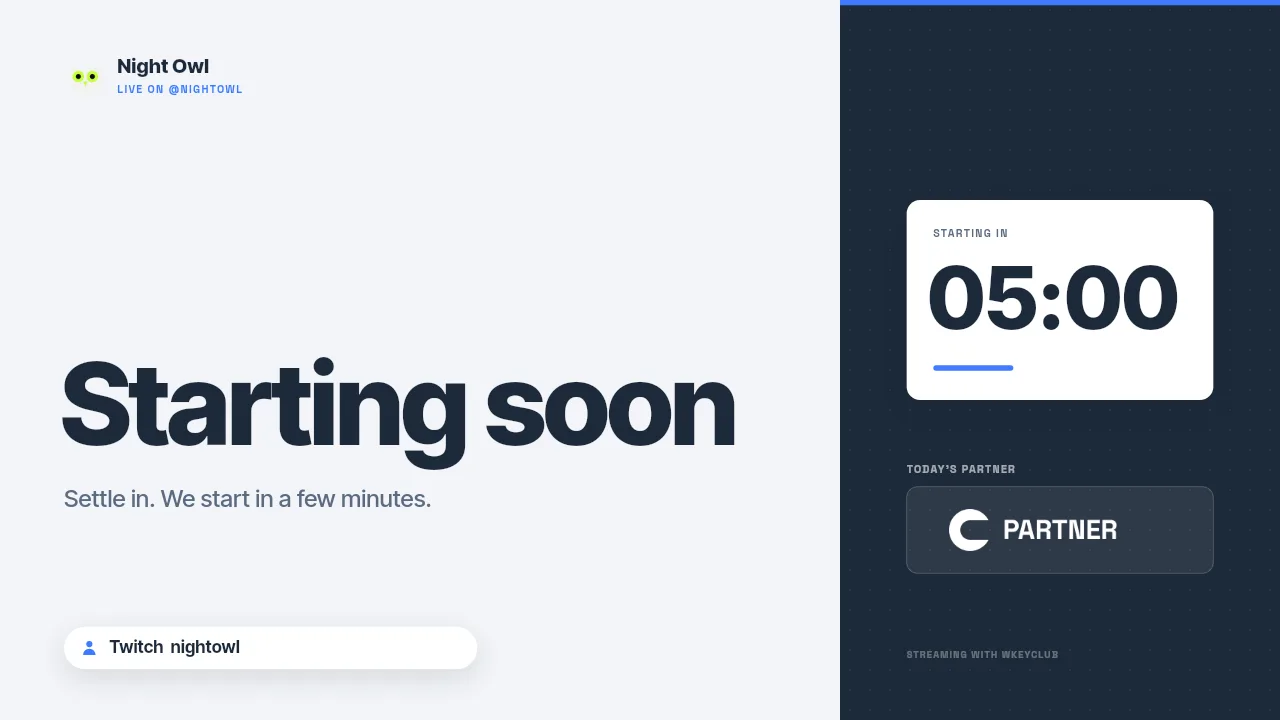
Studio
Stream screen · Clean professional
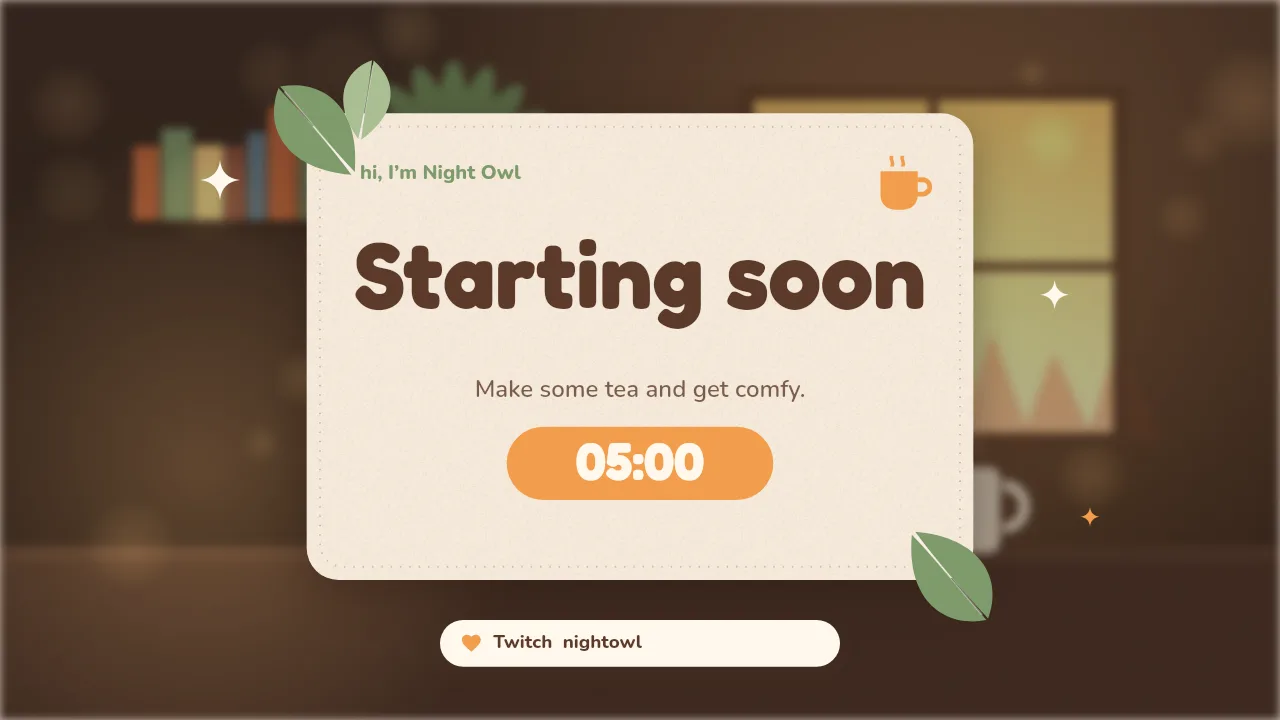
Hearth
Stream screen · Cozy
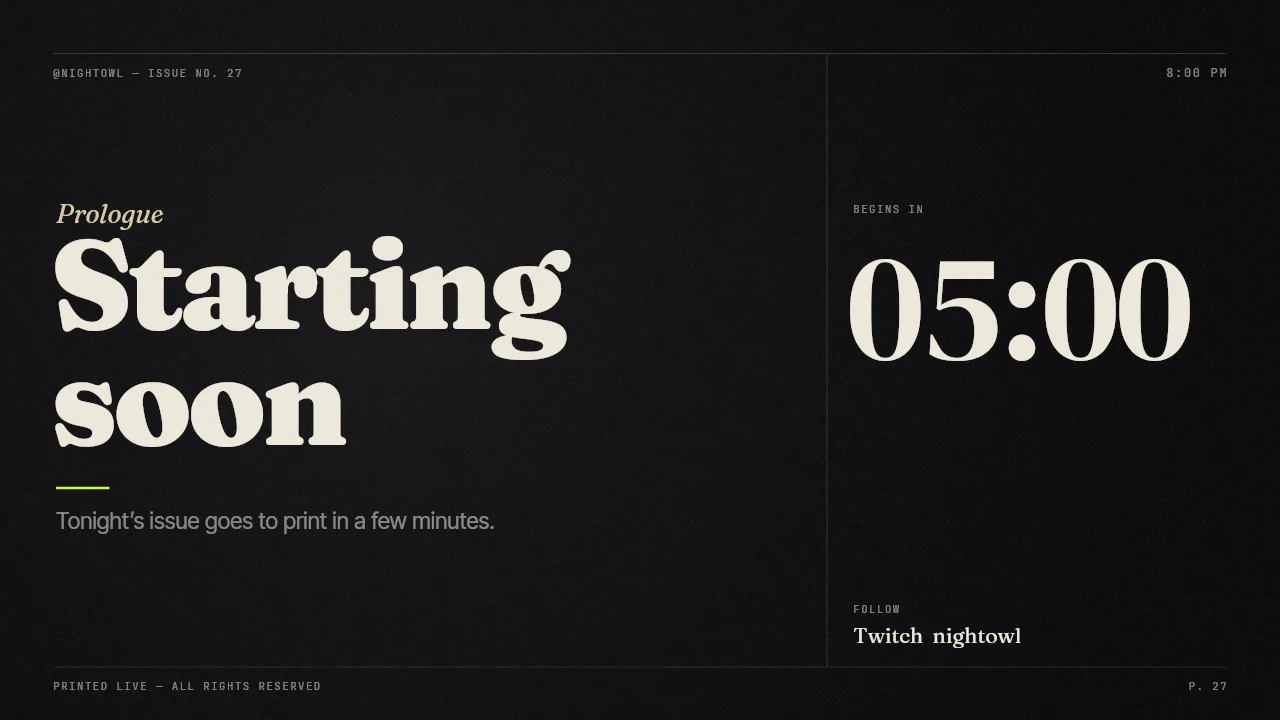
Issue
Stream screen · Dark editorial
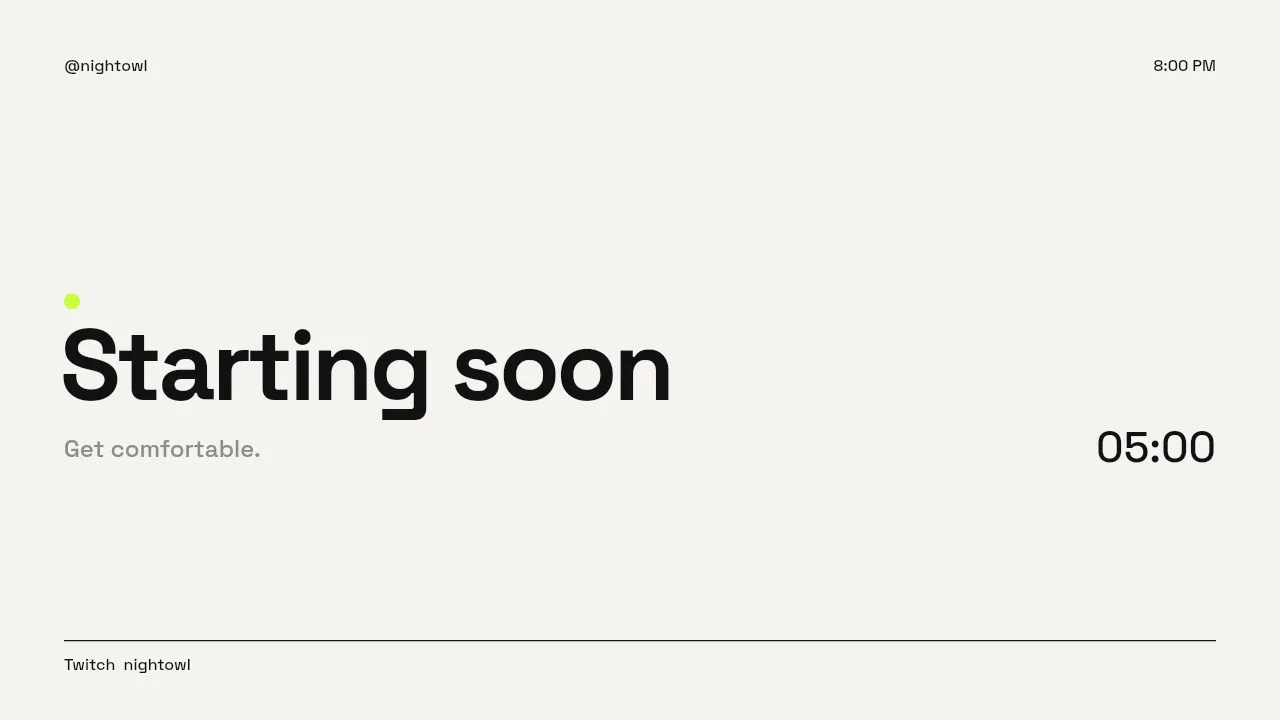
Air
Stream screen · Minimalist
How it works
1. Choose a style
Ten styles, including tactical, cozy, cyberpunk and editorial. Each one has all six screens.
2. Set your details
Add your handle, schedule and countdown. Switch between screen types to check each one.
3. Add them to OBS
Download 1920 × 1080 PNGs, or copy the browser source URL for a live countdown.
Common questions
How do I add a Starting Soon screen to OBS?
Create a scene called Starting Soon and add an Image source with the PNG, or a Browser source with your hosted URL if you want a live countdown. Set it to 1920 × 1080. The OBS stream screens guide goes through it step by step.
Does the countdown keep running if I switch scenes?
A countdown set to a target time always shows the right time left. A countdown set as a duration restarts when OBS reloads the source, so use a target time for your start-of-stream timer.
Can I put my socials on the ending screen?
Yes. The Ending and Offline screens use the socials and schedule from your brand vault. Change them there once and every screen updates.
Are these screens free?
The generator and the free templates are free, and they download without a watermark. Premium styles are free to edit and preview; buy the pack to download them without the watermark.